Plugin Overview
Documentation for Paystack Payments in Elementor Forms
This plugin helps wordpress websites using Elementor collect payments through Elementor forms in a smooth, secure, and user-friendly way. This guide will help you launch quickly, manage payments confidently, and troubleshoot issues without technical stress.
Who this is for
Website owners, business teams, and administrators who want to accept online payments from Elementor forms.
What you can do
Charge one-time payments, manage transactions, receive notifications, and run multiple payment-enabled Elementor forms across pages.
Key Features
Paystack Checkout Support
Connect your form flows with Paystack-powered payments in a familiar checkout process.
Multiple Form Usage
Accept Payments on multiple forms and pages while keeping each form’s behavior clear and independent.
Transaction Visibility
Track payment status and review submission outcomes for better operational clarity.
Notification Friendly
Stay informed with email updates tied to submission and payment events.
Simple Setup Flow
Go from installation to first live payment in a straightforward sequence of guided steps.
Built for Real Sites
Supports common admin workflows with practical controls and clear fallback steps.
Installation
Before installation, confirm supported requirements: updated WordPress environment, Elementor Pro Plugin availability, and an active Paystack account.
Upload & Activate
Add the plugin package and activate it from your Wordpress Plugins management screen.
Verify Access
Confirm the plugin menu item appears in your wordpress admin dashboard.
Configure Form
Create or choose your Elementor form where you will accept payments from.
Configuration & Initial Setup
After activation, complete initial setup to ensure reliable payment processing and clear admin control.
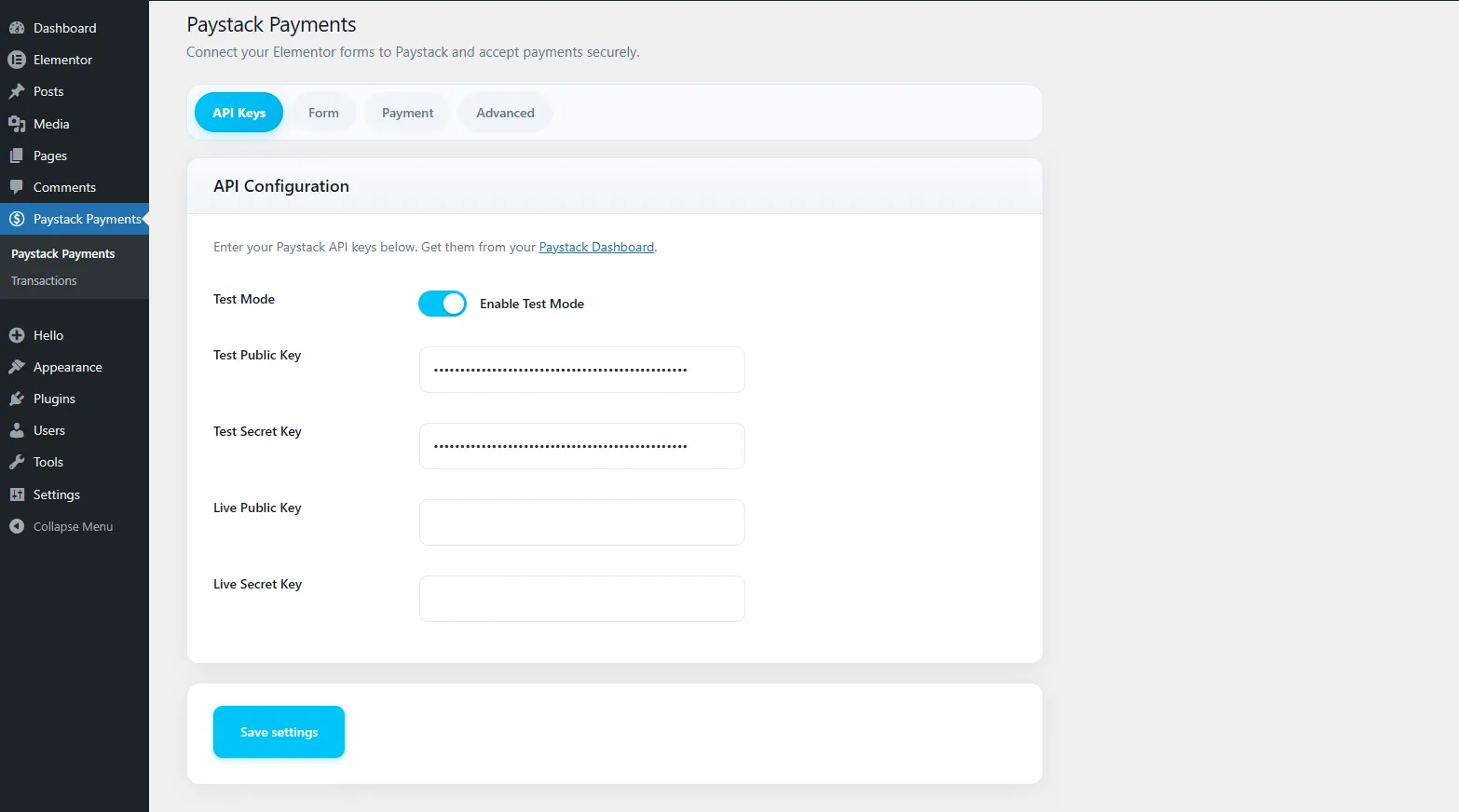
- Open plugin settings and connect your Paystack account credentials.
- Choose your preferred operating mode and validate connection status.
- Set currency and default payment behavior for your form use case.
- Save settings and run a controlled test transaction.
Elementor Form Configuration
Enable payment actions directly in your target form and map fields so user submissions carry the right payment details.
Field Mapping
Map essential form fields such as payer email and payable amount according to your form structure.
Action Sequence
Confirm payment action placement in your form workflow so users are guided smoothly after submission.
Multiple Forms & Pages
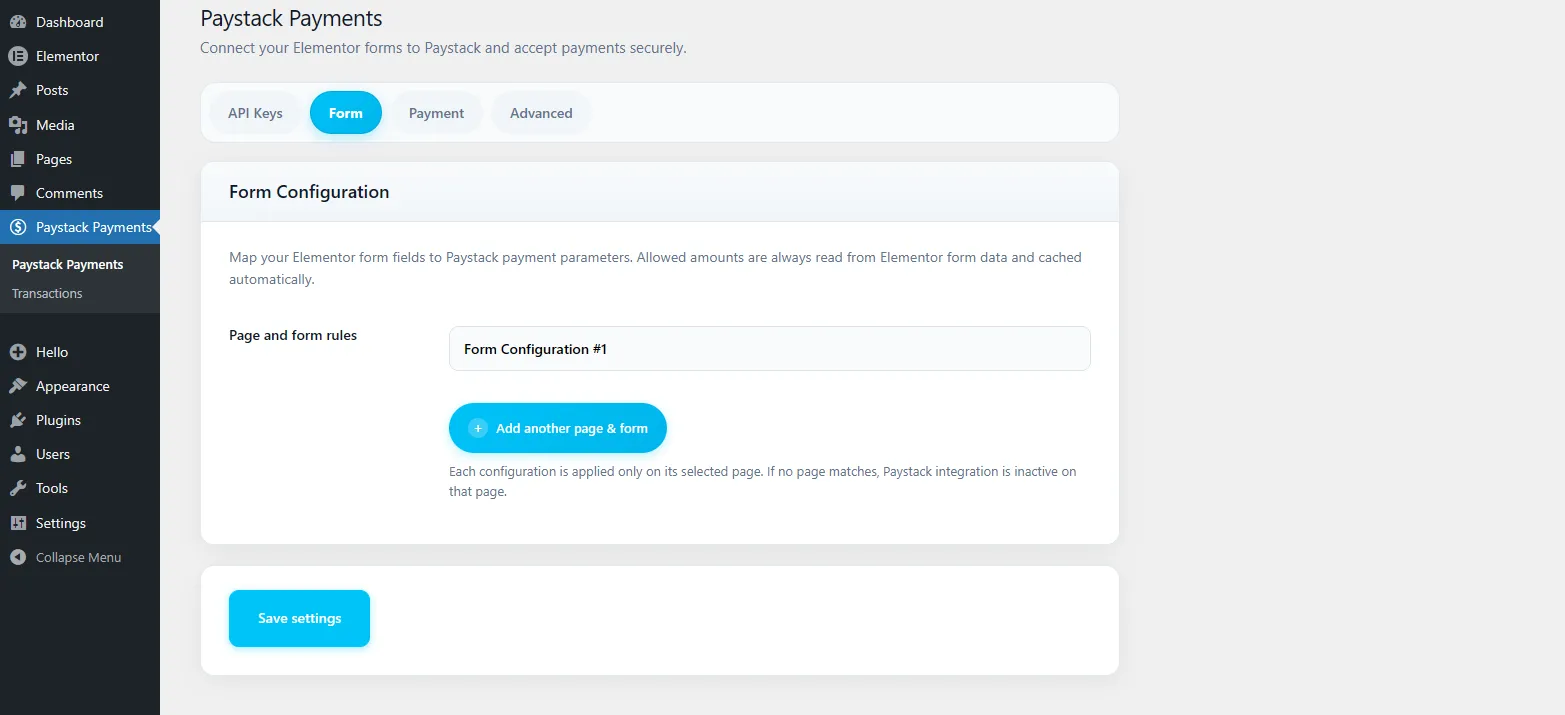
Run payment-enabled forms across several pages with clear rules to avoid conflicts and keep tracking accurate.
- Use unique forms for distinct payment scenarios.
- Keep page-specific messaging clear for visitors.
- Test each form independently before publishing.
- Document internal naming conventions for admin clarity.
Transactions & Payment Flow
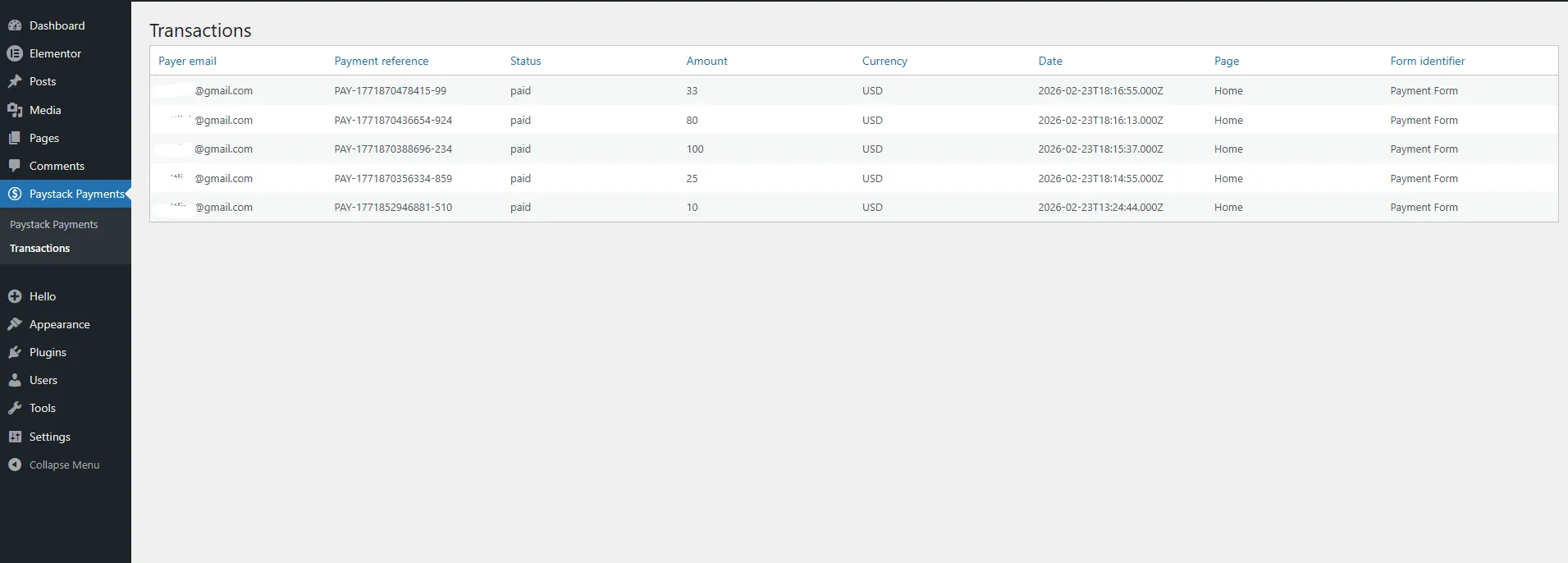
Typical payment flow: visitor submits form → payment is initiated → status is confirmed → transaction is recorded for follow-up.
Email Notifications & Advanced Settings
Email Updates
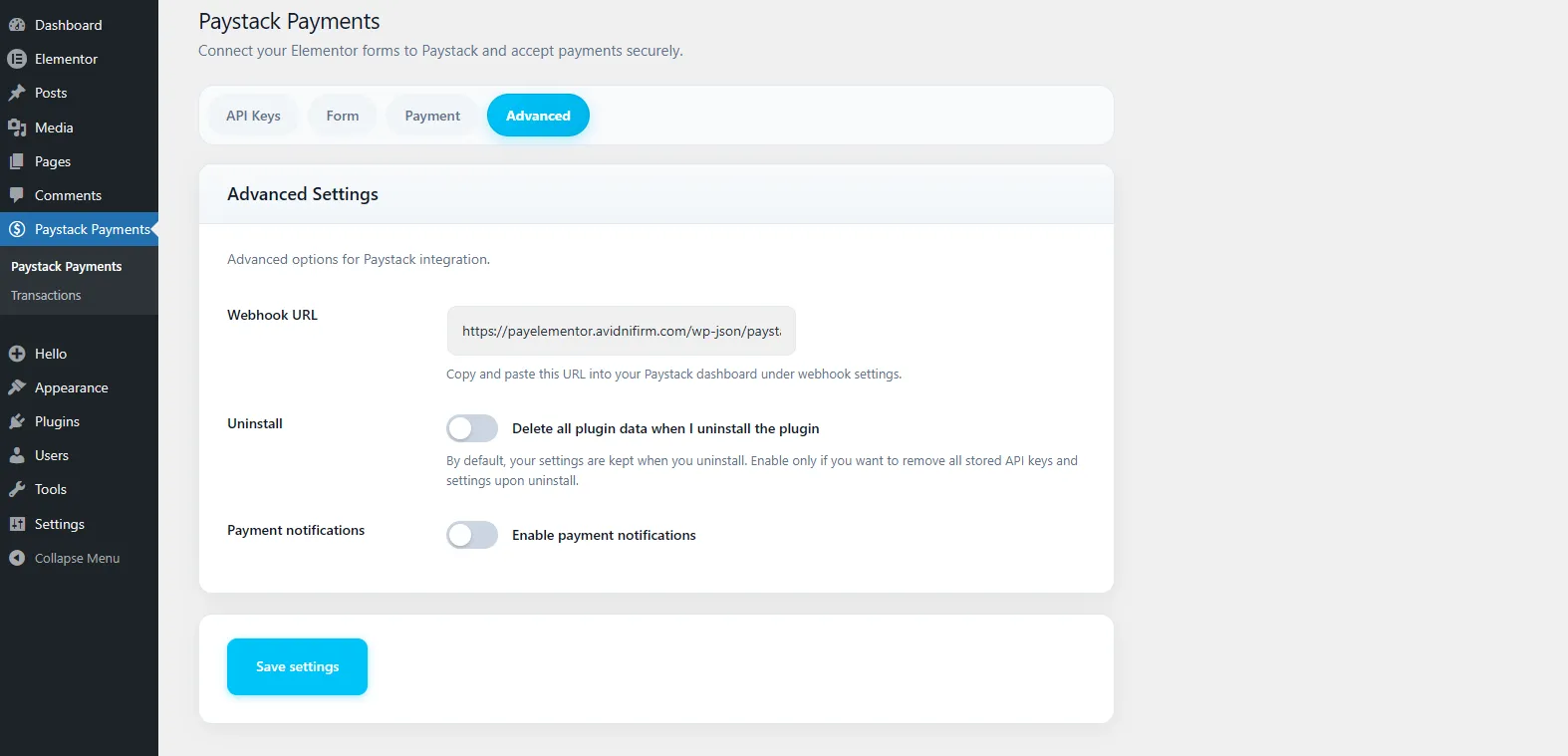
Set notification recipients and review message clarity to keep teams informed about successful and failed payments.
Advanced Controls
Adjust optional settings for operational preferences while maintaining a predictable end-user payment journey.
Security & Data Protection
Protect user trust by following practical security checks and responsible data handling processes.
- Use trusted administrator accounts for configuration changes.
- Review payment and submission history routinely.
- Keep your site software and plugins updated.
- Minimize access to sensitive operational settings.
FAQs
Yes. You can configure multiple forms and pages, then test each one separately before launch.
Use your transaction records and notification logs to confirm status and follow up where needed.
Yes. Make controlled updates, then run a quick test to ensure your live forms still behave as expected.
Troubleshooting
Payments Not Starting
Recheck setup fields, confirm form action placement, and run a clean test submission.
No Notification Received
Verify recipient details and review notification behavior with a new test transaction.
Versioning & Changelog
Release notes.
- v1.0.0
— Initial public documentation baseline for installation, setup, and operations.
— Improved compatibility with latest Elementor and WordPress versions.
— Added translation support for multilingual websites. - v1.9.0
— Added repeater-based multi page/form admin configuration while preserving legacy single-form compatibility.
— Added Transactions submenu with sortable and paginated admin transaction table.
— Added advanced successful-payment email notifications with opt-in toggle and email validation.
— Improved admin layout so WordPress notices render above plugin header without overlap.
Support & Contact
If you need help, share your form scenario, expected behavior, and observed issue with your support request so resolution can be faster.
Recommended details to include:
- Page URL where the issue appears.
- Form name and intended payment behavior.
- Transaction reference (if available).
- Steps already attempted from this guide.